How to Get and Use the
Break 80 & trackman App
Welcome to Break 80! We’re excited to have you as a part of our community and can’t wait for you to experience all the fun and features our golf simulators have to offer. To help you get started, we’ve provided a detailed guide on how to use the club and make the most of your time here. Whether you’re a seasoned golfer or new to the game, these instructions will ensure you have an enjoyable and seamless experience.

Step 1 – Download the Break 80 Member Portal app
To schedule tee times and gain access to the facility, search for and download the Break80 Member Portal app from the Apple App or Google Play Store.
You can also follow either of the below links for your specific phone version:
Step 2 – Log into the Break 80 Member Portal
Your account has been automatically created for you on sign up.
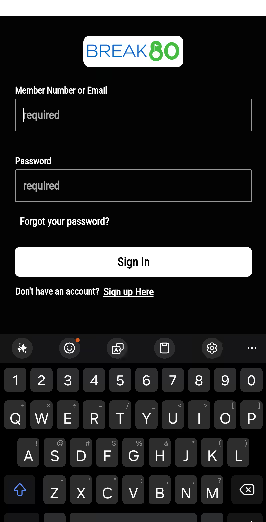
You can login to the Break 80 app using your email address and the temporary password sent you in the welcome email you should have received after purchasing your membership.
If you no longer have the initial email, you can change your password by selecting “Forgot your password” from the login screen and follow the steps to reset.
Step 3 – Schedule an Appointment (Tee Time)
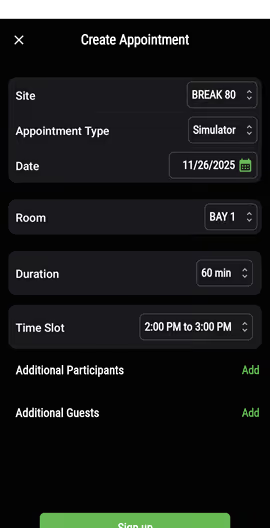
- Tap book appointment
- Choose an appointment type – “Simulator”
- For the room, pick from Bay 1 thru 4
- Choose the date from the calendar
- Set your desired duration
- Choose a time slot from the available list
- Add Member Participants or Guests as needed
- Tap Sign up to complete the booking
calendar
To see the available bays for the club on any one day, click Appointments at the bottom right of the Home screen of the app.
Select Calendar at the top left and you can navigate through the days / bays to find an open time slot.

Step 4 – Access Break 80
You can gain entry to the club up to one hour before your scheduled tee time using the Break 80 app.
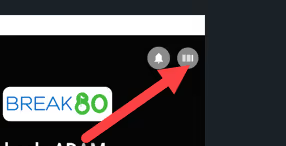
- Tap the icon at the top right of the home screen of the app indicated here by the red arrow.
- On the following screen there will be an option at the top left to Unlock Door.
- Tap Unlock Door, then Break 80 and the door lock will release for entry to club.

Step 5 – Allow the Break 80 App to Access the Device’s Location
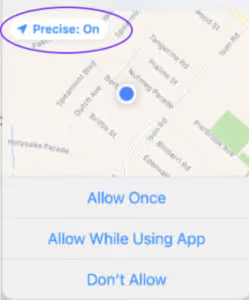
The first time you tap Unlock Door, the app will prompt you to use the device location.
Select “Precise” or “Precise: On” and select Allow “While using the App”
This is required for access to the facility.
If location is not allowed in the Break 80 app, the front door will NOT open.
Android (see image)
Apple (see image)
If you’ve turned off location to the Break 80 app, when you tap to unlock the door, you’ll receive an error message, “Location Access Denied”.
To re-enable, here are a couple YouTube videos on how to allow location access:
Step 1 – Download the Trackman Golf App
To use the Trackman TM4 Simulators at Break 80, you’ll need to also install the Trackman Golf app on your phone.
Search for and download the Trackman Golf app from the Apple App or Google Play Store.
You can also follow either of the below links for your specific phone version:
Step 2 – Setup Trackman Profile
- Install and Open the Trackman Golf App
- Install the App: Download and install the Trackman Golf App from your device's app store.
- Open the App: Once installed, tap on the app icon to open it.
- Create Your Account
- Sign Up with Email: Tap on Create Account. Enter your email address to sign up.
- Set a Password: Choose a password for your account.
- Important: Ensure your password does not contain special characters. It should include at least one uppercase letter.
- Agree to Terms and Conditions:
- Review and accept the terms and conditions.
- Tap Next and then select Create Account.
- Choose Your Player Name
- Enter a Player Name: Choose a player name.
- This name will be displayed in tournaments and within Trackman Performance Studio (TPS).
- Confirm your player name to proceed.
- Access Previous Sessions
- Auto Loads Previous Sessions: Once your profile is set up, any sessions that were sent to your email before your account setup will automatically appear in the app.
Step 3 – Use the Quick Login Feature
- Login to the Trackman Golf app
- Select Quick Login
- Scan the QR code in TPS or on the Range screen
- You can also login by entering the 6 digit PIN you see on screen
- Or sign in using your email and password for your Trackman account
- Watch as your Trackman profile quick appears in the top right corner of the screen and you're done
- After your session you will now be able to review your data all in one place within the app under the Activities section

You’re on the tee box!
From this point, you should now be in the Break 80 facility, logged into Trackman and ready to start your game!
Watch the below videos to learn how to use Trackman Performance Studio’s most popular features.
Trackman Range
Virtual Golf 3
Trackman Games
Trackman Shot Analysis
AI Motion Analysis
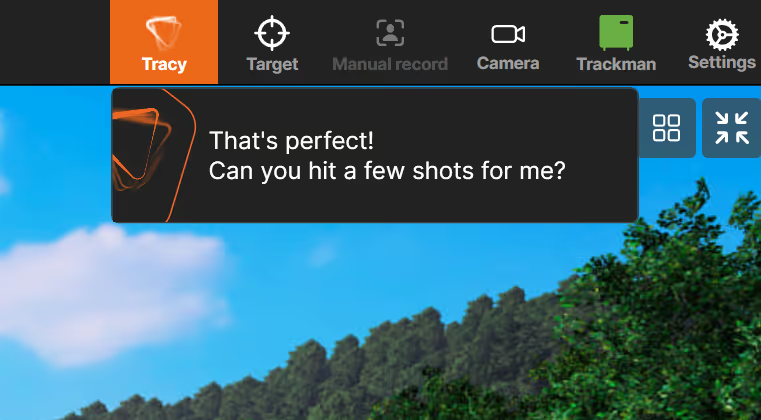
How To Find Tracy
- Open TPS
- Launch the Trackman Performance Studio on your system.
- Navigate to Shot Analysis
- From the main dashboard, select the Shot Analysis module.
- Locate Tracy
- Once the module is open and connected to a session, look to the top-right corner of the screen.
- Here you’ll see the Tracy icon. Click it to activate or interact with Tracy.
That's it!
Once you've completed downloading and setting up both the Break 80 and Trackman App, you have everything you need to get started and make the most of your experience at the club. We’re confident you’ll be up and running in no time, and we hope you enjoy every moment you spend here. If you need any help along the way, we’re always here to assist. Please feel free to reach out if you have any questions or need further assistance. Thank you again for being a valued member. Enjoy your game!